
How To Use Cursor AI to Build a Wiggle Panel in Adobe After Effects
April 8, 2025 · Mike Murphy
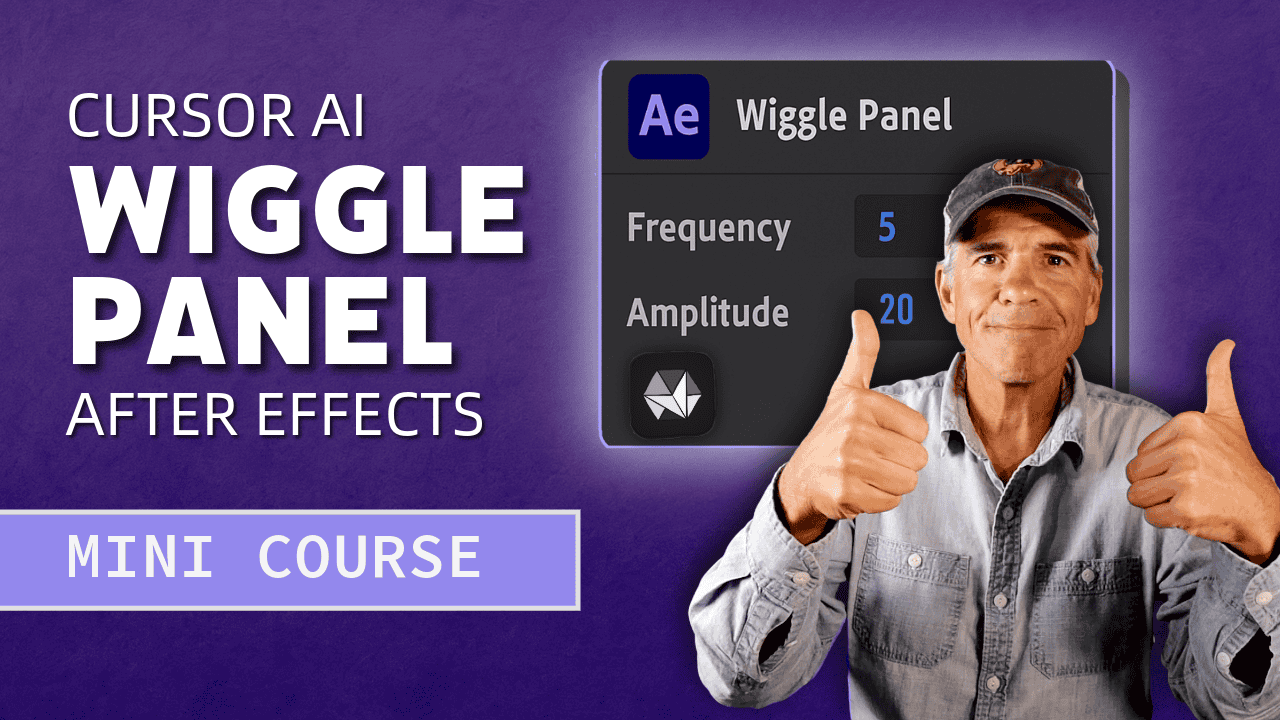
This free 4-part mini-course shows you how to use Cursor AI—an AI-powered code editor—to build a custom, dock-able Wiggle Panel inside Adobe After Effects. No coding experience required. Just curiosity, creativity, and a desire to build something cool from scratch.
Description
Free 4-Part Mini-Course for Creators
✨ Intro In this free 4-part mini-course, you’ll learn how to use Cursor AI, an AI-powered code editor, to build a custom, dock-able Wiggle Panel inside Adobe After Effects. No coding experience required—just curiosity and a desire to build something useful. This project is perfect for creators who want to explore how AI can help them design tools, automate workflows, and make After Effects smarter and more fun to use.
Watch On YouTube:
- Part 1: Getting Started Using Cursor AI
- Part 2: Build Basic ScriptUI Panel in After Effects
- Part 3: Add Wiggle Expression To After Effects Panel with Cursor AI
- Part 4: Add Sliders, Input Fields & Debug the Panel
- Playlist: ** Build a Wiggle Panel with Cursor AI
**
📦 What You’ll Learn
-
How to use Cursor AI to write and understand After Effects scripting
-
How to connect Cursor to AE using the scripting API
-
How to build a dock-able custom panel using Adobe UXP
-
How to add controls and logic to automate the Wiggle Expression
-
How to reuse and expand your panel for other tools
🎬 Mini-Course Playlist
🔹 Part 1: *How to Use Cursor AI *Welcome to Part 1 of my 4-part mini-course where you’ll learn how to use Cursor AI (a smart code editor) to build your own custom Wiggle Panel inside Adobe After Effects — no prior coding experience needed.
In this video, you’ll:
- Learn what Cursor is and why it’s great for creators
- Set up a free account and install Cursor
- Take a tour of the interface and understand how it works
- Get tips on vibe coding, keyboard shortcuts, and models
📖 How To Get Started Using Cursor
- Open web browser
- Visit https://cursor.com
- Click ‘Sign In’ and sign up for free account
- Click Download
- Install on Mac, Windows or Linux
- Click to Open Cursor App
- Tour the Interface
⌨️ Cursor Keyboard Shortcuts:
- Explorer Bar: Cmd/Ctrl + B
- Chat Panel: Cmd/Ctrl + i
- Send: Return/Enter
- New Chat: Cmd/Ctrl + N
- Open Terminal Panel: Cmd/Ctrl + J
🔹 Part 2: How to set up Project Folder and build the Script UI Panel with Wiggle Button* *Setup Project Folder & Build Basic ScriptUI Panel
🎓 Part 2 of 4: How to set up Project Folder and build the Script UI Panel with Wiggle Button
Welcome to Part 2 of this 4-part mini-course where you’ll learn how to set up a Project Folder for this project and future vibe coding projects, how to open the folder in Cursor AI and then add a text prompt to build the basic ScriptUI Panel with a button that says ‘Wiggle’.
🧱 **What You’ll Learn:
**- How to organize your project folder for vibe coding
- How to open folders in Cursor AI and explore the interface
- How to prompt Cursor using the Context + Expectations method
- How to generate a .jsx ScriptUI panel with a dummy button
- How to install and test your custom panel inside After Effects
⌨️Keyboard Shortcuts:
- Open Chat Panel: Cmd/Ctrl + I
- Accept All Changes: Cmd/Ctrl + Enter
- Create Duplicate File: Cmd/Ctrl + D
📂 Project Folder Setup:
- Home > code > code builds > ae_script_panel_wiggle
- Inside: `dev`, `docs`, `project files`
💾 ScriptUI Install Path (Mac):
- Applications > Adobe After Effects [version] > Scripts > ScriptUI Panels
🗂️ How To Set Up Vibe Coding Project Folder (Mac Instructions)
- Create folder in Home Folder called ‘code’
- Create a folder inside ‘code’ called ‘code builds’
- Create a folder inside ‘code builds’ called ‘ae_script_panel_wiggle’
- Create 3 folders inside project folder (dev, docs, project files)
- Place Cursor code files (.jsx) in ‘dev’ folder
- Place ReadMe files and prompts in ‘docs’
- Place After Effects .aep project in ‘project files’
🛠️ How To Build ScriptUI Panel in Cursor AI
- Copy ChatGPT (or similar) prompt to clipboard
- Open Cursor
- Open Project Folder
- Press Cmd/Ctrl + i to jump cursor to Chat Panel
- Paste Prompt in text field
- Press Return/Enter
- Accept File generated by Cursor
- Move .jsx file into ‘dev’ folder
🛠️ How To Add Code (.jsx) to After Effects
- Open Project Folder
- Open ‘dev’ folder
- Copy .jsx file (Cmd/Ctrl + D)
- Move .jsx file outside of ‘dev’ and give it identical file name as original created by Cursor
- Open Finder
- Click on Applications
- Click on Adobe After Effects [latest version]
- Click on ‘Scripts’
- Click on ‘ScriptsUI Panel’ and drag to Sidebar for shortcut
- Drag duplicated .jsx file in ScriptsUI Panel
- Open After Effects
- Go to Window Menu
- Select ‘myaetools.jsx’ to open
- Test by docking
- Click ‘Wiggle’ and nothing should happen yet
🛠️ How To Modify Code & Add Wiggle Expression Using Cursor AI
- Open Cursor
- Open Project Folder
- Press Cmd/Ctrl + i to jump cursor to Chat Panel
- Type in Text Prompt in Cursor or,
- Copy ChatGPT prompt to clipboard
- Paste Prompt in text field
- Press Return/Enter
- Accept File generated by Cursor
🛠️ How To Add Code (.jsx) to After Effects Script UI Panel
- Open Project Folder
- Open ‘dev’ folder
- Copy .jsx file (Cmd/Ctrl + D)
- Click on Applications
- Click on Adobe After Effects [latest version]
- Click on ‘Scripts’
- Click on ‘ScriptsUI Panel’ and drag to Sidebar for shortcut
- Paste copied .jsx file in ScriptsUI Panel
- Press ‘Replace’
- Enter Mac Password
🛠️ How To Test Wiggle Expression & Error Message in After Effects
- Open After Effects
- Go to Window Menu
- Select ‘myaetools.jsx’ to open
- Select Layer
- Tap ‘P’ for Position
- Press Wiggle Button
- Values of Position Property should turn red
- Tap ‘EE’ to view wiggle(5,20) expression
- Deselect all (F2)
- Press ‘Wiggle’ Button
- Error Message should appear
**Prompt Used:
Write an Adobe ExtendScript (.jsx) for After Effects that creates a dockable ScriptUI panel titled “My AE Tools” with a single button labeled “Wiggle”.
Use the proper pattern to check if `this instanceof Panel` to support both docked and floating states. Use ScriptUI components inside the panel.
The button does not need to do anything yet. The script should be saved inside the ScriptUI Panels folder and show up under Window > My AE Tools.
**
🔹 Part 3: *Building the Wiggle Panel Logic *This is where the magic happens. We add buttons, inputs, and real functionality to control the Wiggle Expression—all from your custom panel.
Welcome to Part 3 of this free 4-part mini-course! In this Part 3…we open our project folder from Part 3 and use Cursor AI to make the Wiggle button on the After Effects Script UI Panel work!
🧱 What You’ll Learn:
- Use Cursor AI to add a working wiggle() expression to a selected property in AE
- Update the existing .jsx file in ScriptUI panel
- Replace the file properly so After Effects sees the new changes
- Handle “no property selected” errors with a friendly alert
- Test After Panel panel with both Position and Rotation properties
⌨️**Keyboard Shortcuts:
**Cmd/Ctrl + i: Jump to Chat Panel
Reveal All Expressions: End of Part 3
💾 **ScriptUI Install Path (Mac):
**Applications…Adobe After Effects [version]…Scripts…ScriptUI Panels
Prompt: Update this ExtendScript ScriptUI panel for After Effects. When the “Wiggle” button is clicked, it should apply the expression wiggle(5, 20) to the selected property. If no property is selected, show an alert saying “Please select a property first.”
🛠️ How To Modify Code & Add Wiggle Expression Using Cursor AI
- Open Cursor
- Open Project Folder
- Press Cmd/Ctrl + i to jump cursor to Chat Panel
- Type in Text Prompt in Cursor or,
- Copy ChatGPT prompt to clipboard
- Paste Prompt in text field
- Press Return/Enter
- Accept File generated by Cursor
🛠️ How To Add Code (.jsx) to After Effects Script UI Panel
- Open Project Folder
- Open ‘dev’ folder
- Copy .jsx file (Cmd/Ctrl + D)
- Click on Applications
- Click on Adobe After Effects [latest version]
- Click on ‘Scripts’
- Click on ‘ScriptsUI Panel’ and drag to Sidebar for shortcut
- Paste copied .jsx file in ScriptsUI Panel
- Press ‘Replace’
- Enter Mac Password
🛠️ How To Test Wiggle Expression & Error Message in After Effects
- Open After Effects
- Go to Window Menu
- Select ‘myaetools.jsx’ to open
- Select Layer
- Tap ‘P’ for Position
- Press Wiggle Button
- Values of Position Property should turn red
- Tap ‘EE’ to view wiggle(5,20) expression
- Deselect all (F2)
- Press ‘Wiggle’ Button
- Error Message should appear
🔹 Part 4: *Final Polish & Reuse Tips *In the final part, we wrap things up, talk about improvements, and look at how you can repurpose this panel for other effects and tools.
**Welcome to Part 4 of this free 4-part mini-course!
**In this Part 4…we open our project folder from Part 3 and use Cursor AI to take our wiggle panel to the next level by adding sliders and input fields for Frequency & Amplitude and we do some debugging and tweaking.
🧱 What You’ll Learn:
- Use Cursor AI to add sliders to Wiggle Panel
- Update the existing .jsx file in ScriptUI panel
- Use Cursor AI to add value input fields to Wiggle Panel
- Use Cursor AI to fix decimal place issue
- Use Cursor AI to make the Tab Key work properly
- How to make your very own Wiggle Panel for After Effects!
Prompt Used:

Update this ExtendScript ScriptUI panel to include two sliders:
1. Frequency (range 0.1–100, default 5)
2. Amplitude (range 0.1–500, default 20)

Each slider should include:
- A label
- A slider control
- A numeric input field that reflects the slider value

Ensure the numeric input fields allow manual decimal entry, even if the sliders snap to integer steps.
Update the "Wiggle" button so that when clicked, it applies an expression using the values from the sliders: wiggle(frequency, amplitude).

If no property is selected, show an alert message saying "Please select a property first."
⌨️**Keyboard Shortcuts:
**Cmd/Ctrl + i: Jump to Chat Panel
Reveal All Expressions: End of Part 3
💾 **ScriptUI Install Path (Mac):
**Applications…Adobe After Effects [version]…Scripts…ScriptUI Panels
🛠️ How To Modify Code & Add Wiggle Sliders Using Cursor AI
- Open Cursor
- Open Project Folder
- Press Cmd/Ctrl + i to jump cursor to Chat Panel
- Type in Text Prompt in Cursor or,
- Copy ChatGPT prompt to clipboard
- Paste Prompt in text field
- Press Return/Enter
- Accept File generated by Cursor
🛠️ How To Add Code (.jsx) to After Effects Script UI Panel
- Open Project Folder
- Open ‘dev’ folder
- Copy .jsx file (Cmd/Ctrl + D)
- Click on Applications
- Click on Adobe After Effects [latest version]
- Click on ‘Scripts’
- Click on ‘ScriptsUI Panel’ and drag to Sidebar for shortcut
- Paste copied .jsx file in ScriptsUI Panel
- Press ‘Replace’
- Enter Mac Password
🛠️ How To Test Wiggle Sliders & Debug in After Effects
- Open After Effects
- Go to Window Menu
- Select ‘myaetools.jsx’ to open
- Select Layer
- Tap ‘P’ for Position
- Press Wiggle Button
- Values of Position Property should turn red
- Tap ‘EE’ to view wiggle(5,20) expression
- Deselect all (F2)
- Press ‘Wiggle’ Button
- Error Message should appear
- Drag Sliders to confirm they are working
- Enter values for Frequency & Amplitude
- Note bugs or issues such as decimals & tab button
- Return to Cursor to Debug (state problem and tell Cursor to fix)
- Replace .jsx file after Cursor debugs file
- Re-open After Effects
- Pat yourself on the back for a job well done!
• • Enjoy your new Wiggle Panel and keep adding stuff to it!
💾 Resources & Downloads
✉️ Follow the Journey
This mini-course is part of my journey to teach creative tools, explore AI, and build smarter workflows.
If you’re also exploring how to use AI to create digital products and grow your online business…
👉 Subscribe to AI Unplugged (Newsletter)
**Software Used:
**Adobe After Effects CC 2025 (Click To Try or Buy)