
Episode 120
The Podcasts Connect Show
December 22, 2017 · Mike Murphy
EP120: THE PODCASTS CONNECT SHOW Today is all about Apple Podcasts Connect & the brand new Podcasts Analytics that everybody has been waiting for. Episode Summary: What is Podcasts Connect by Apple? What are Podcast Analytics?
Episode Summary: A walkthrough of Apple Podcasts Connect — how to manage an existing podcast, validate and submit a brand-new show, and read the new Podcast Analytics dashboard Apple rolled out in December 2017.
What You’ll Learn
- What Apple Podcasts Connect is, and why Apple calls it three different names (iTunes Connect, Podcasts Connect, Apple iTunes Connect)
- The Manage, Resources, and Validate & Submit features inside Podcasts Connect
- How to launch a brand-new podcast: validating and submitting an RSS feed
- What Apple Podcast Analytics tracks: unique devices, time listened, subscriber breakdown, and listener drop-off trends
What Is Podcasts Connect?
Podcasts Connect is the portal Apple launched in 2016 for managing existing podcasts, launching new ones, and viewing performance analytics. Apple isn’t consistent with the name — you’ll see it called iTunes Connect, Podcasts Connect, or Apple iTunes Connect, but they’re all the same tool.
Warning: don’t touch your RSS feed URL or the Mirror URL inside Podcasts Connect unless you know exactly what you’re doing. Your RSS feed is how listeners subscribe and get notified of new episodes — mess with it carelessly and you risk breaking subscriptions.
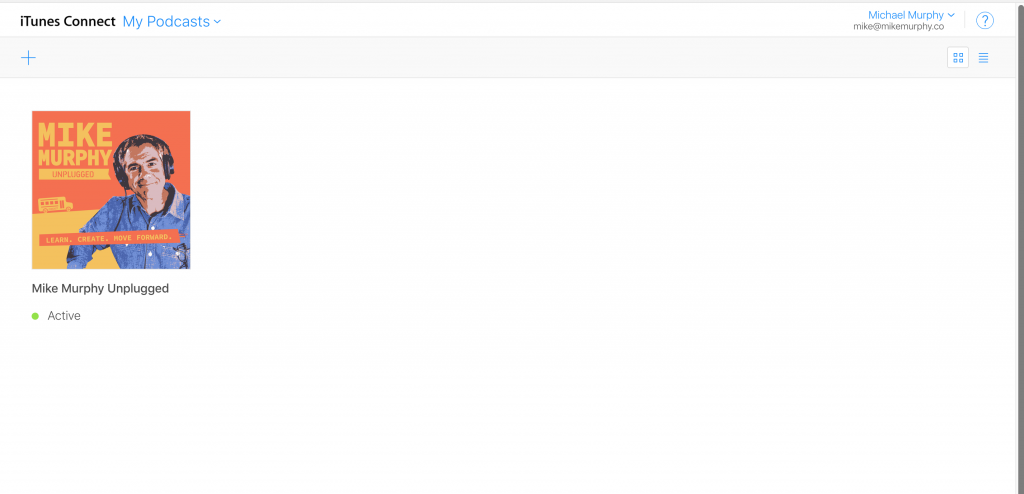
Managing an Existing Podcast
Every podcast tied to your account — new or old — shows up under Manage. Click your cover art to open a show’s management page.
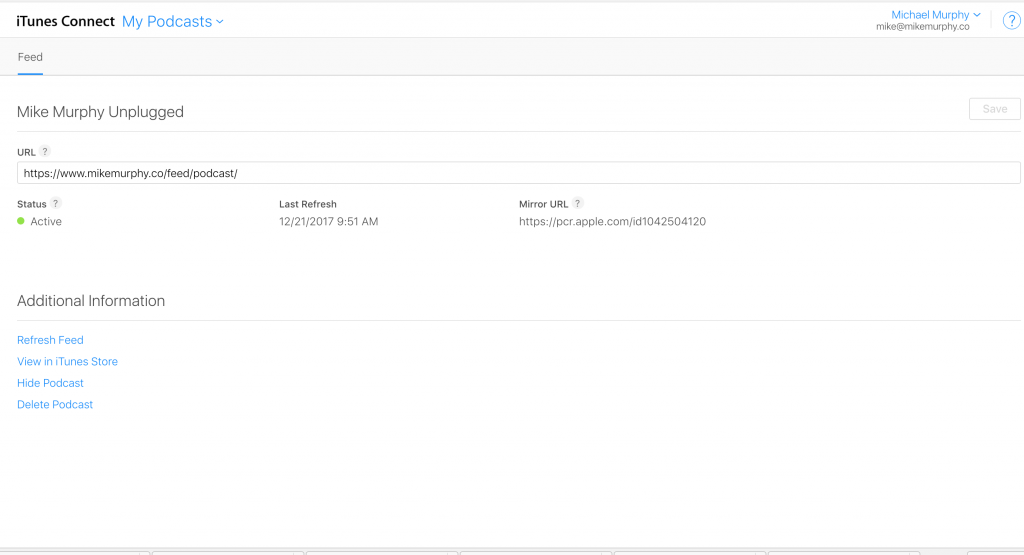
The features available there:
- Status & Refresh Feed — a green dot means your podcast is active and healthy; red means something needs fixing. Refreshing isn’t usually necessary, but it’s useful after metadata changes that are slow to update in iTunes.
- Mirror URL — a permanent link to your RSS feed. Listeners who subscribe via the mirror URL stay subscribed even if you change your actual feed URL later. Only touch this if you understand RSS feeds.
- View in iTunes — see how your show looks live in the iTunes Store.
- Hide Podcast — keeps a show active but undiscoverable/unlisted.
- Delete Podcast — self-explanatory.
Tip: subscribe to your own podcast, and check it on your devices every time you publish a new episode. If something looks wrong, Podcasts Connect’s status indicator is the first place to check.
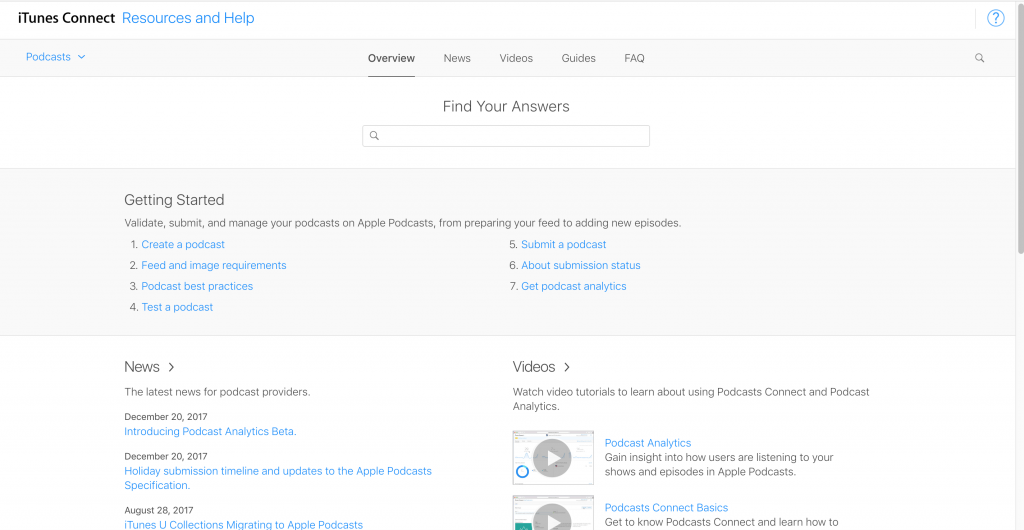
Resources & Help
The Apple Podcasts Partner Resources library has FAQs, news, videos, and guides covering all of podcasting. It’s accessible from the dropdown menu in the upper left, under My Podcasts.
Launching a New Podcast: Validate & Submit
Validating and submitting is the last step before a new podcast goes live — same process whether it’s your first show or another one added to an existing account.
- Copy your RSS feed URL to your clipboard.
- In Podcasts Connect, click the blue + in the upper-left corner (or paste into the empty text box) and hit Validate.
- Fix any errors that come back. Once you get the green light, click Submit.
- You’ll get an immediate confirmation email that Apple received your podcast for review, followed by an approval email (usually within 24–48 hours) once it’s live and listed in Apple Podcasts.
Reading Apple Podcast Analytics
Apple rolled out Podcast Analytics in December 2017, accessible from the same dropdown menu. In Apple’s words, it’s “a data visualization tool that gives you insight into how users are listening to your shows and episodes in Apple Podcasts.”
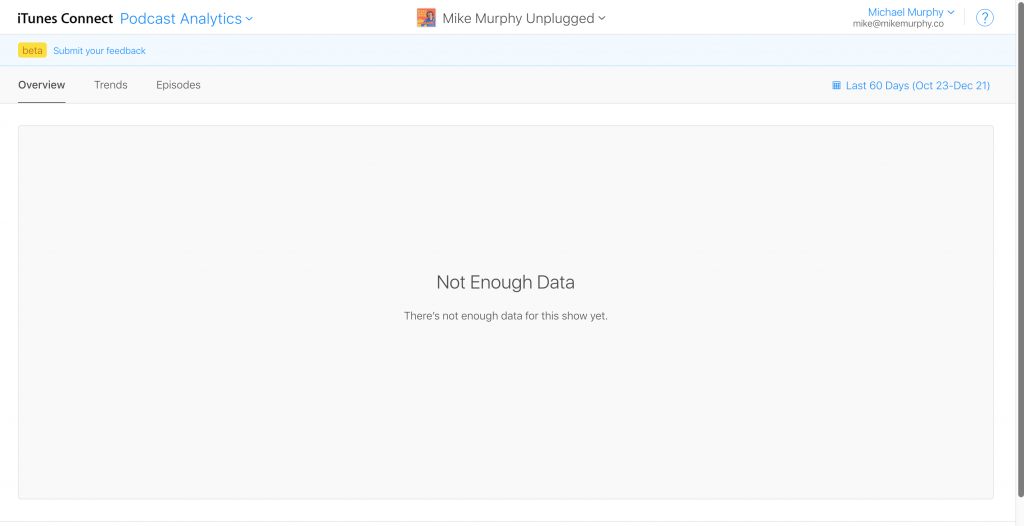
Coverage window: Apple only started collecting data on 9/19/17 — nothing before that date shows up. It’s also limited to listeners on iOS 11+ or iTunes 12.7+; anyone on an older OS isn’t counted.
What it tracks:
- Unique Devices — every iOS 11+ device that played an episode. Switching from iPhone to iPad mid-episode counts as two devices.
- Time Listened — total time users spent listening.
- Time Per Device — average listen time per device.
- Date Picker — filter analytics to a specific time range.
- Subscriber breakdown — subscribers vs. non-subscribers.
- Demographics — top countries by device.
- Trends — visualize listener patterns over time, including exactly where in an episode people drop off. That drop-off data is genuinely useful: if a lot of devices bail in the first minute, it might mean the intro doesn’t explain what the show is about, or the intro music itself is turning people away.
The analytics were limited at launch, but a solid first step — with more clearly on the way for 2018.